Turn a Photo into Video with AI
Choose a clear reference image and describe motion with supported image-to-video models.
 SeeAny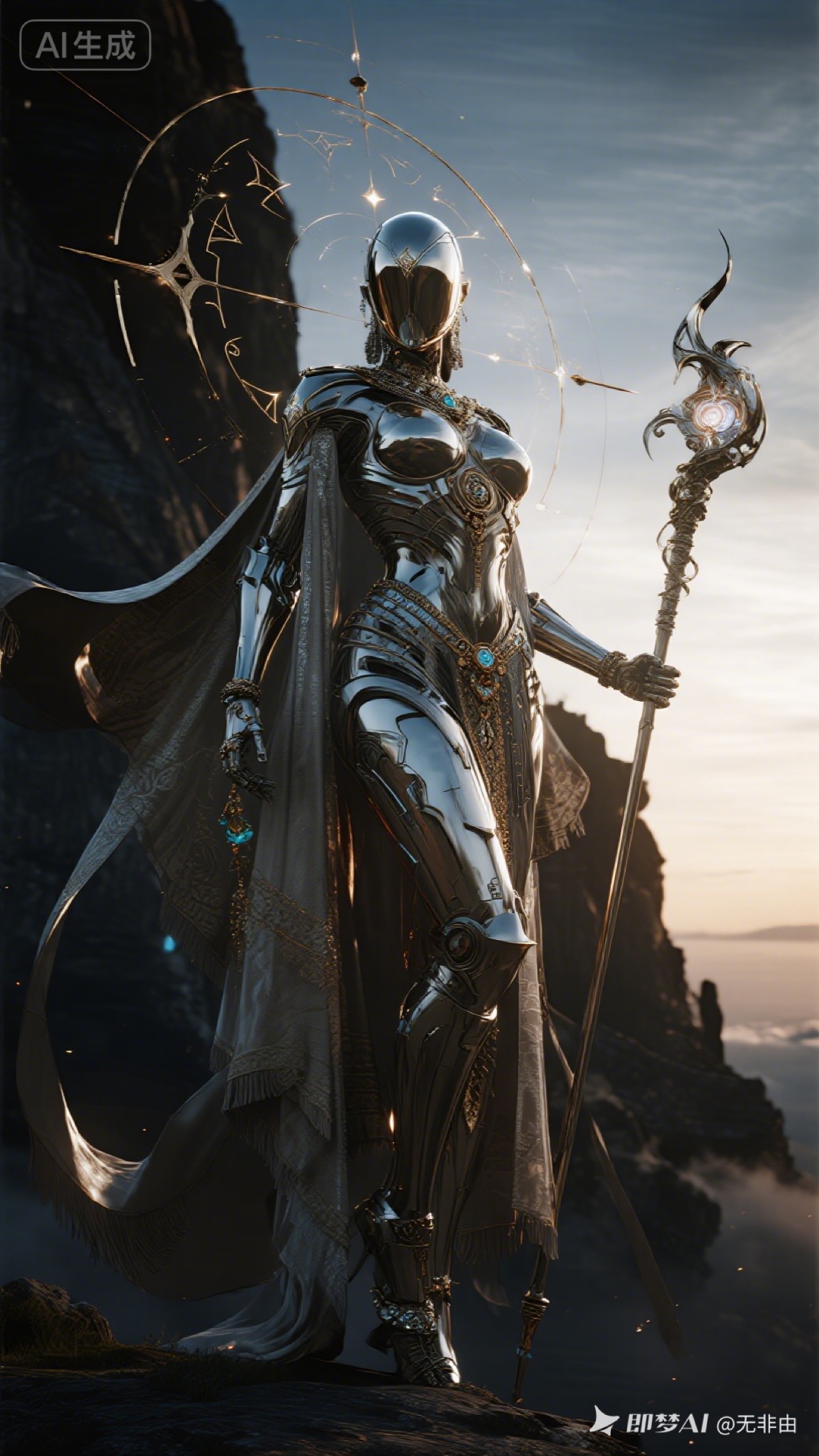
Image-to-video uses a photo, render, or illustration as a reference for motion generation. It provides a starting visual direction, but composition and identity are not guaranteed to remain exact.
How it works
Upload a starting image to a model that supports it and describe the desired movement. Check duration, resolution, and reference limits in the selected model; they differ across variants. SeeAny switches to a matching image-to-video variant when supported and sends requests through WaveSpeed.
Choose the source image
Use a clear subject with space around it, understandable movement such as hair or fabric, and clear lighting. Use material you own or have permission to use. Dense text, tiny faces, and extreme distortion make results harder to inspect.
Motion prompts
- A slow camera push-in, cloak and hair moving gently, embers floating upward.
- Camera moving around the right side of a product, shifting soft studio reflections.
- Natural breathing, blinking, a subtle head turn toward the camera.
Start with one camera move and one or two subject actions.
Avoid common mistakes
Be specific about motion, avoid instructions that strongly contradict the image, compare short supported clips first, and check the target ratio against the source composition.
Open the video workspace, attach a photo, check the model and credits, then generate and review the output. Read the Seedance selection guide, or create a starting still in the image workspace.